







 Download on the
GitHub Releases
Download on the
GitHub Releases
Copilot Stats is a native macOS menu bar app that helps you keep an eye on GitHub Copilot premium request costs.
Features
- View Copilot usage costs in dollars
- Browse usage by month
- See daily costs across the full month
- Launch automatically at login
- Securely store your GitHub token in the macOS Keychain
Installation
Download the latest version from GitHub Releases.
You can also explore the source code and report issues on GitHub.
 Download on the
Mac App Store
Download
14-days trial
Download on the
Mac App Store
Download
14-days trial
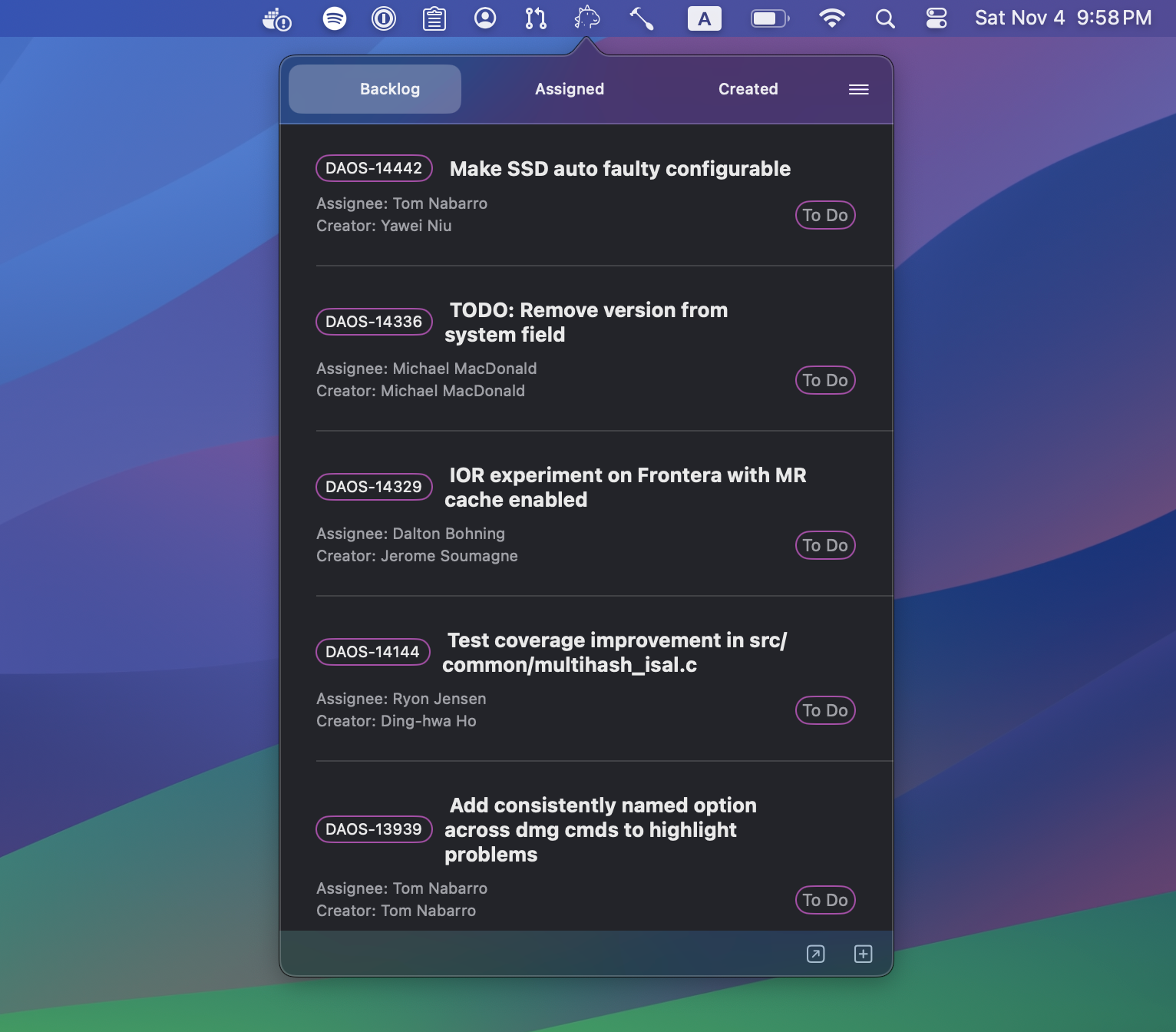
Access your Jira tickets with a single click from your menu bar!
This menu bar application streamlines your Jira interactions, making it easier to manage your tasks. You can create customized views to swiftly access issues from various projects, statuses, or any other category you prefer.
For instance, you can set up a tab for issues assigned to you, another for the issues you’ve created, enabling you to monitor their progress. Additionally, you can create a dedicated tab for managing project backlogs, whether it’s for a single project or multiple projects.
Step-by-Step Guide to Create a JQL Query
-
Log In and Access the Search Interface:
Sign into your JIRA Cloud account. Click on “Issues and filters” in the left sidebar or select “Search for issues” in the dropdown if you are in a different section.
-
Switch to JQL Search:
In the search interface, you might see the basic search options by default. Look for a switch or link to Advanced Search and click it. This will open the JQL search interface.
-
Begin Crafting Your Query:
You’ll see a text field where you can enter your JQL query.
-
Understand Basic Syntax:
JQL queries are structured as
field operator value. For example,status = "Open".fieldrefers to the issue attribute (like status, summary, assignee).operatoris how you want to compare the field (e.g., =, !=, >, <).valueis what you are comparing the field to (like a specific status name, a user, etc.).
-
Use Logical Operators for Complex Queries:
Combine different criteria using operators like AND, OR, and NOT. E.g.,
project = "MYPROJECT" AND status = "Open". -
Leverage Functions and Keywords:
JIRA Cloud also supports various functions like
currentUser()or dates likestartOfDay(). -
Execute the Query:
After typing your query, run it by either pressing Enter or clicking the Search button.
-
Refine Your Query as Needed:
Based on the results, you might want to refine or adjust your query.
-
Use created query in GojiBar
Copy the query and paste it under Preferences -> Tabs in GojiBar.
Example JQL Queries
Find issues assigned to you in a specific project:
project = "MYPROJECT" AND assignee = currentUser()
Search for recently updated high-priority issues:
priority = High AND updated >= -1w
Issues reported by you that are still open:
reporter = currentUser() AND status != Closed




Download on the
GitHub Releases
 tap: menubar-apps/menubar-apps
jirabar
tap: menubar-apps/menubar-apps
jirabar
Native macOS menubar application to show Jira issues in your menu bar:

Installation
Download and install the latest release. Then start the application, open preferences and setup your jira host, credentials and a query:

Download on the
GitHub Releases
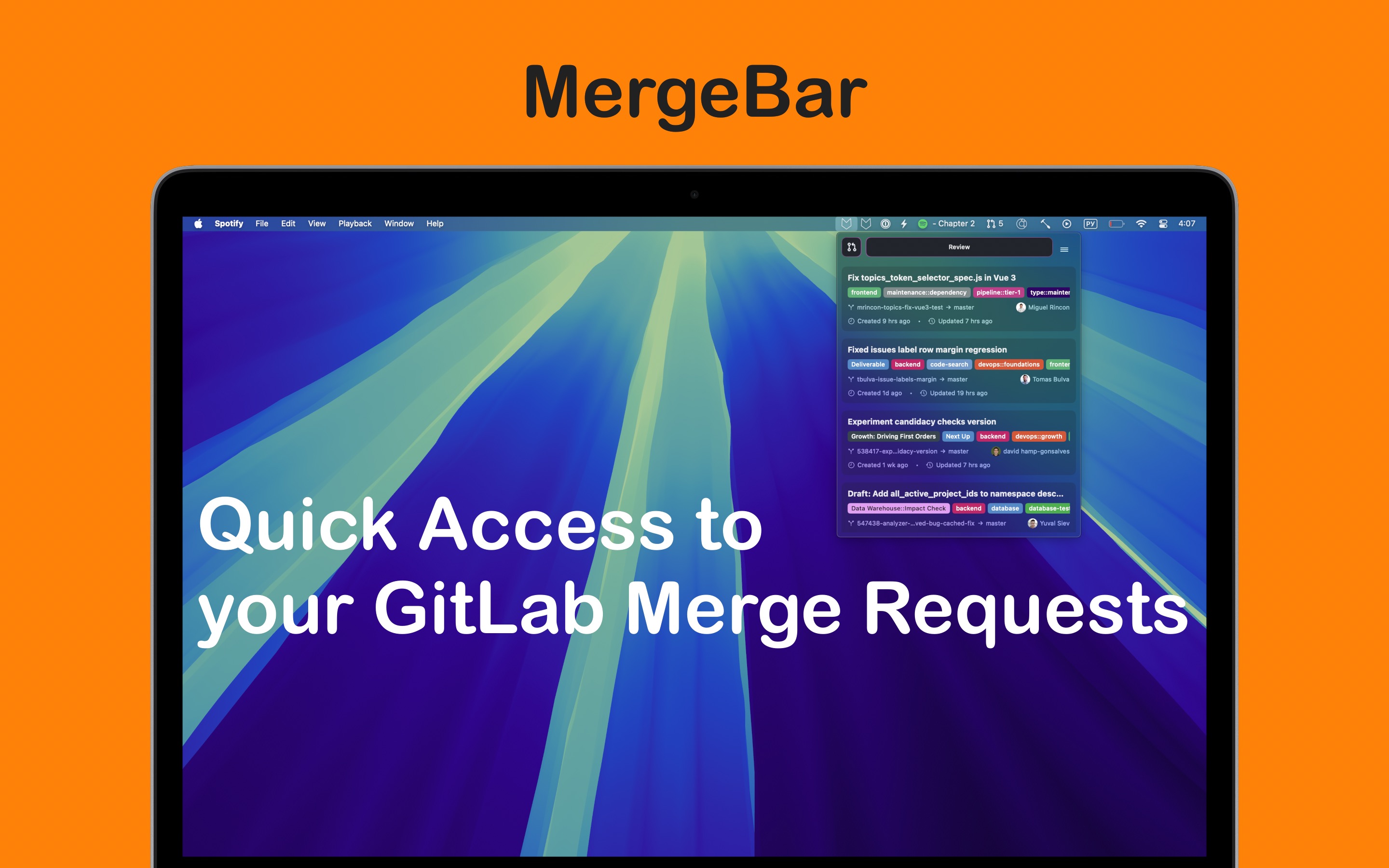
Native macOS menubar application for GitLab users to stay on top of your workflow! Effortlessly track merge requests, issues, and to-dos—all in one convenient place:
Features
- Instantly see merge requests where your review is needed.
- Upgrade to unlock full access to your created and assigned merge requests, GitLab issues, and to-do items.
- Keep your tasks and code reviews organized and never miss an important update.
- Connects directly to your GitLab account, ensuring your data stays private and up to date.
-
Perfect for solo developers or teams to boost productivity and keep GitLab projects moving forward.
- shows merged pull requests and merge activity;
- for each merge shows title, number, project, author, number of approvals, number of added/deleted lines and how long ago the merge happened;
- show check suites or check runs information with links to the corresponding builds.
Download on the
Mac App Store
 Check free version
OctoSpace Lite
Check free version
OctoSpace Lite
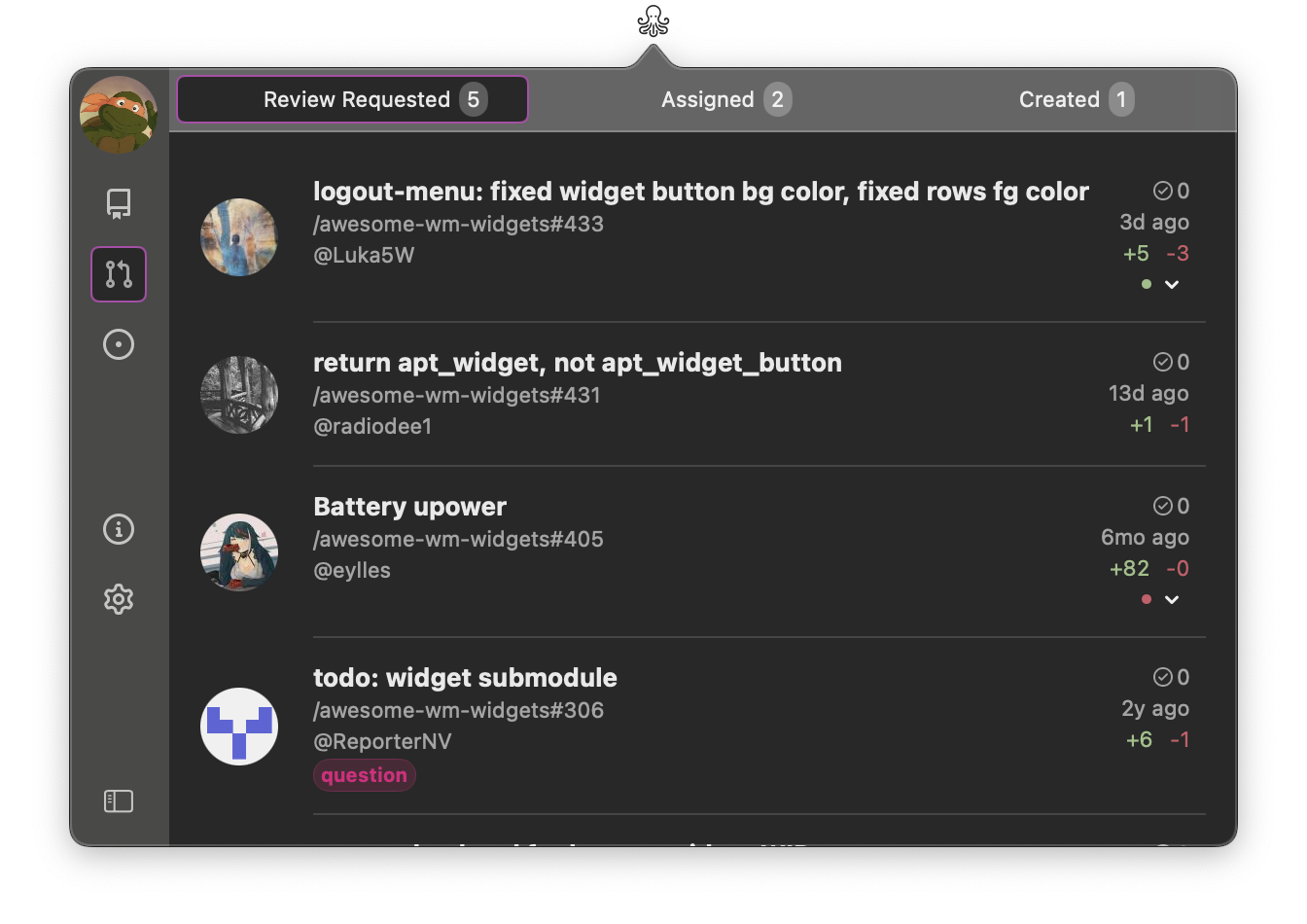
With this app you’ll be able to quickly access github’s pull requests, issues and repositories of any organization you’re part of.
Ideal for:
- Developers seeking a more integrated GitHub experience on their macOS.
- Project managers who need to keep track of multiple GitHub organizations simultaneously.
- GitHub power users wanting to optimize their workflow.
- Contributors to open-source projects who need to stay updated on various repositories.
Features
- simple setup - just generate an access token and paste it in the app.
- built in SwiftUI, for better performance, theming and integration with macOS.
- for pull requests you can setup:
- what type of pull requests to view: review requested, assigned and/or created.
- status checks - is a code quality feature of GitHub’s pull requests, which is based on external processes, like CI pipeline. There are two types of status checks: check and commit status. OctoSpace supports both of them.
- for issues you can setup:
- what type of issue to view: assigned, created and/or mentioned.
Upcoming features
- add search to the repositories view
- add github projects view
- improve issues view to include information about projects, related to the issue
- add team members view
- suggest your feature
If you liked the app, please leave a review. In case you didn’t like it, please submit an issue, I’ll be happy to fix bugs, implement missing functionalities or work on new features.
Download on the
Mac App Store
Check full version
OctoSpace
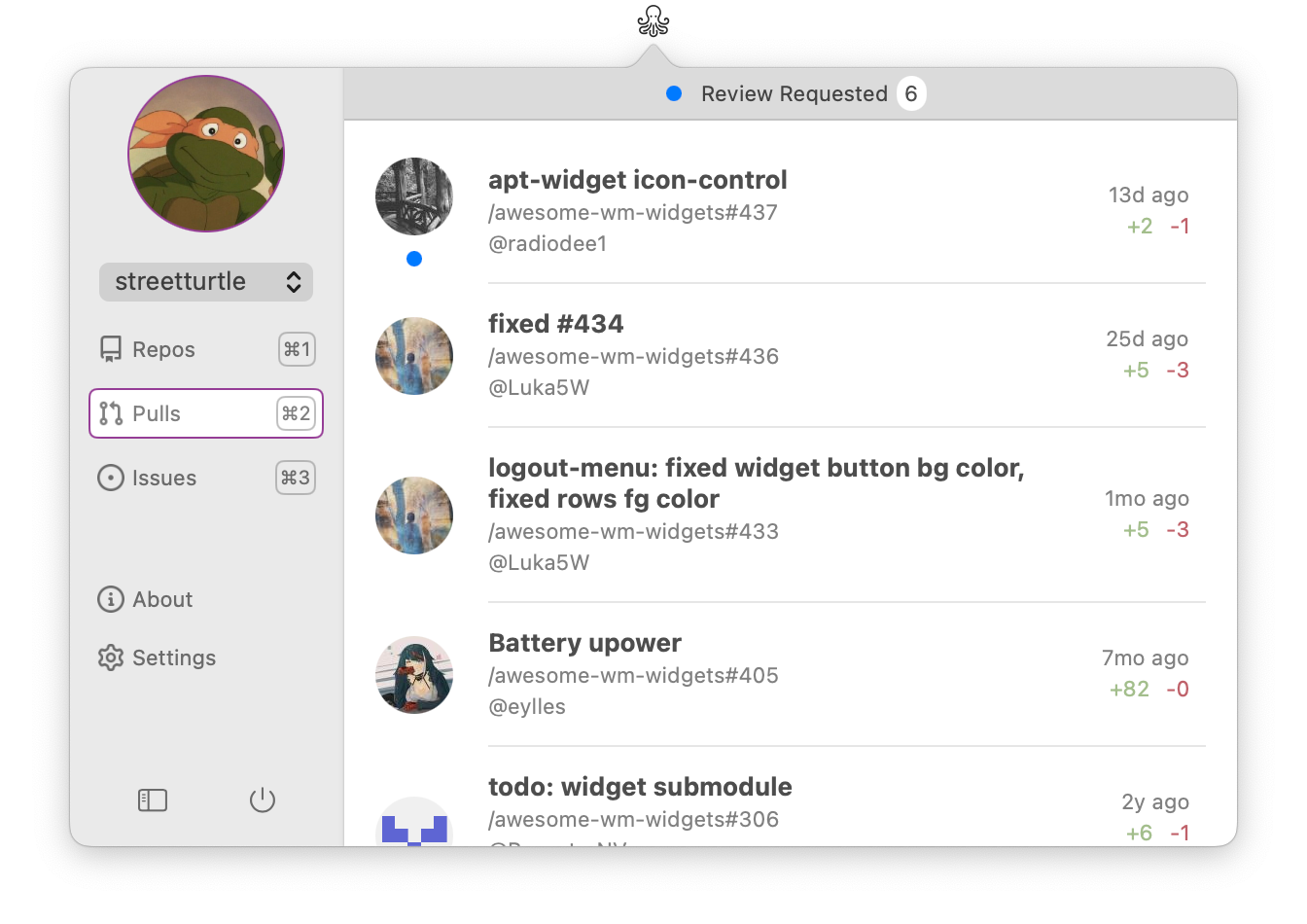
You GitHub companion one click away!
Features
- simple setup - just generate an access token and paste it in the app.
- built in SwiftUI, for better performance, theming and integration with macOS.
If you liked the app, please leave a review. In case you didn’t like it, please submit an issue, I’ll be happy to fix bugs, implement missing functionalities or work on new features.




Download on the
Mac App Store
Download on the
GitHub Releases
tap: menubar-apps/menubar-apps
pullbar
Native macOS menubar application to show GitHub Pull Requests in your menu bar! Keep track of created, assigned and review requested Pull Requests:

Features
- shows assigned, created and review requested pull requests;
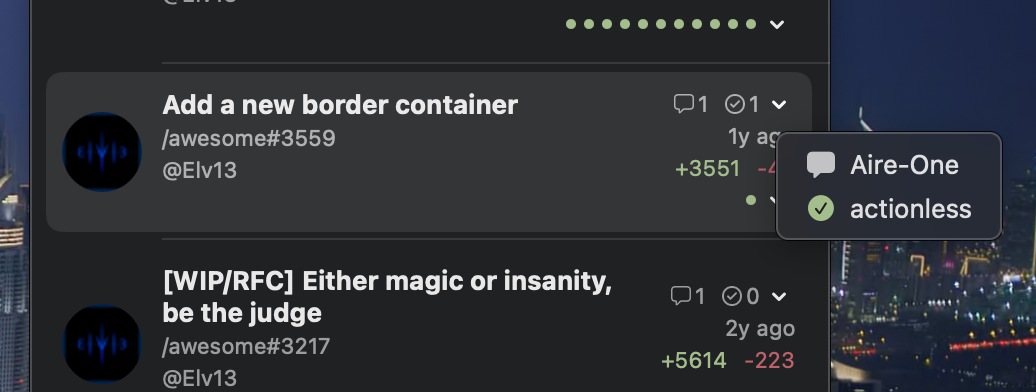
- for each pull request shows title, number, project, author, number of approvals, number of added/deleted lines and how long ago this PR was created:

- show check suites or check runs information with links to the corresponding builds.
Need more? PullBar Pro adds Mentioned and Reviewed tabs, editable tab searches, per-tab sorting and filters, and Sign in with GitHub.
Installation
There are 3 ways of installing the application:
- Mac App Store
- Homebrew:
brew tap menubar-apps/menubar-apps brew install pullbar - Download from github releases
Free download · Pro Unlock is a $1.99 one-time purchase, no subscription · macOS 14 or later

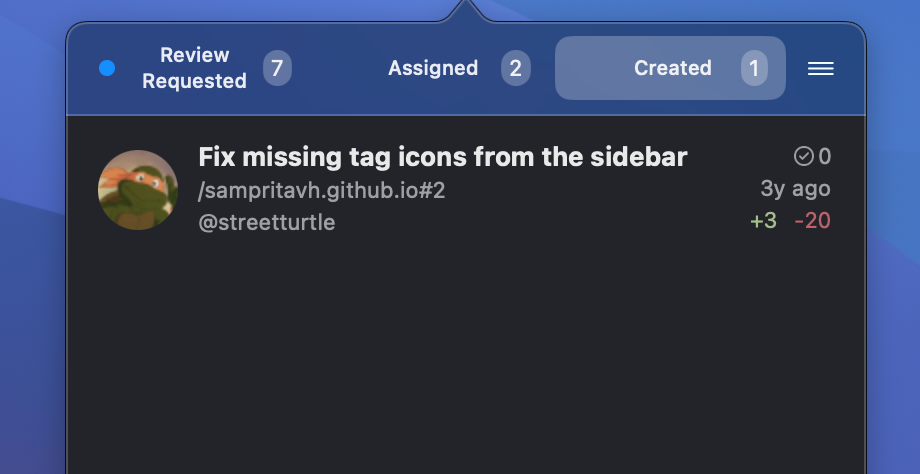
PullBar Pro keeps your GitHub pull requests one click away in the macOS menu bar. See which PRs are waiting for your review, and follow the reviews and CI status of the PRs you created, are assigned to, or were mentioned in.
Free vs Pro
| Free | Pro Unlock | |
|---|---|---|
| Review Requested tab | ✓ | ✓ |
| Assigned, Created, Mentioned and Reviewed tabs | – | ✓ |
| Sorting and filters on every tab | ✓ | ✓ |
| Price | free | $1.99, one-time |
Coming from PullBar? PullBar Pro adds Mentioned and Reviewed tabs, editable tab searches, per-tab sorting and filters, and Sign in with GitHub.
Sign in with GitHub
Sign in with your GitHub account in a few clicks. No username or token setup needed. You can still use a personal access token, for example with GitHub Enterprise Server.
Pull Request Details
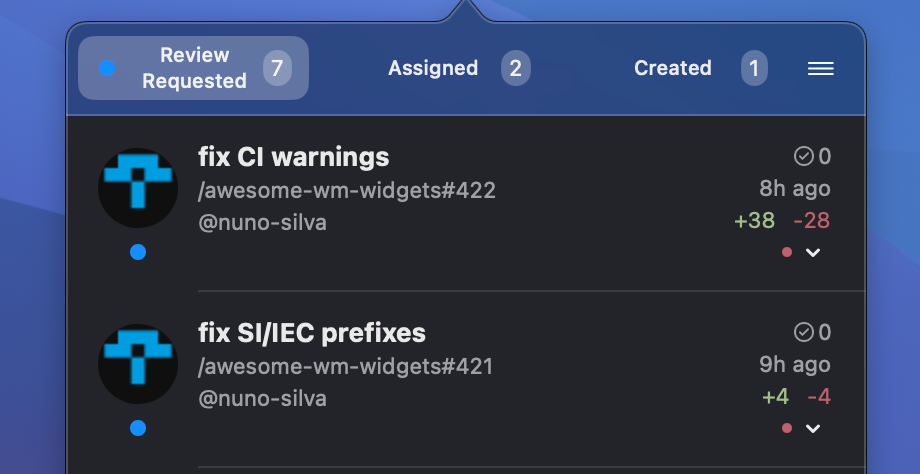
For each PR, view the title, repository, PR number, author and optionally the author’s avatar and labels. Also shown are the number of reviews, additions and deletions, and the CI status. Right-click a PR to copy its title, link or branch name.
Tabs
Enable up to five tabs: Review Requested, Assigned, Created, Mentioned and Reviewed. Reorder them and edit the search query behind each tab. The blue dot on a tab shows that some of its PRs have unseen changes.
Sorting and Filters
Sort each tab by recently updated, recently created, title or repository. Filter by repository, or show only PRs that are unread, have changes requested, failing checks, conflicts, or are drafts.
Keyboard Support
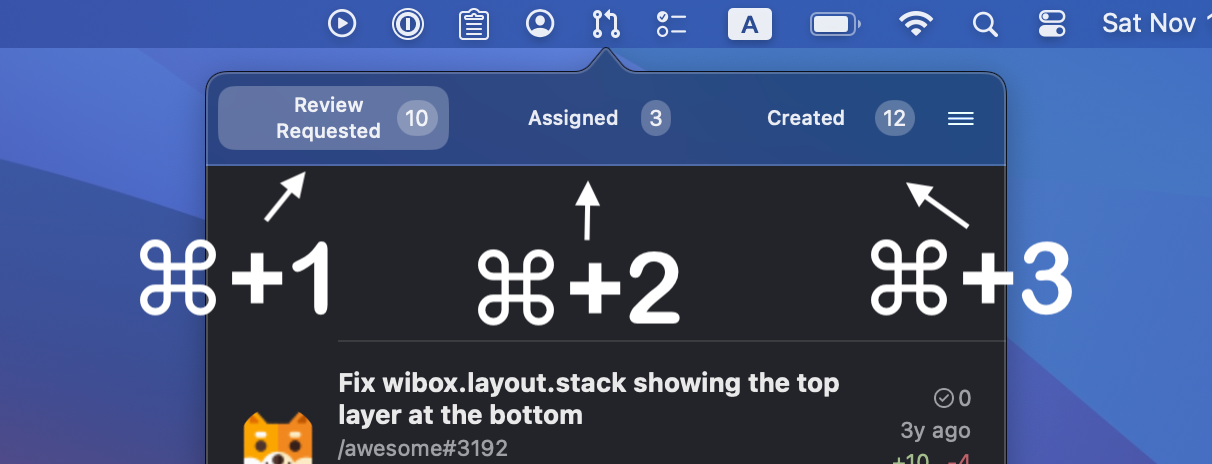
Assign a keyboard shortcut to open the app. While the app is open, switch between tabs with ⌘cmd + 1 through ⌘cmd + 5, depending on the number of enabled tabs.
CI Status
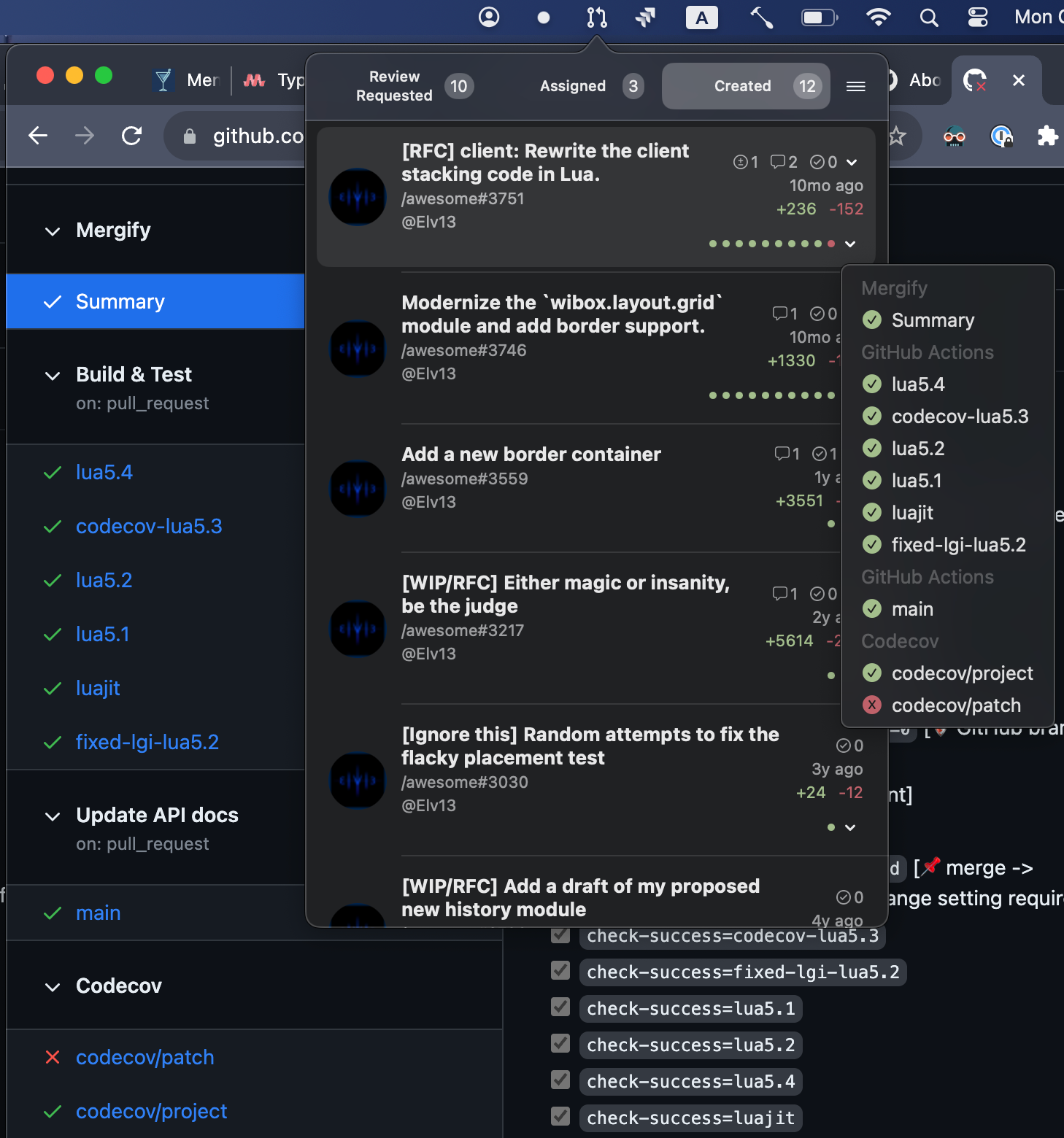
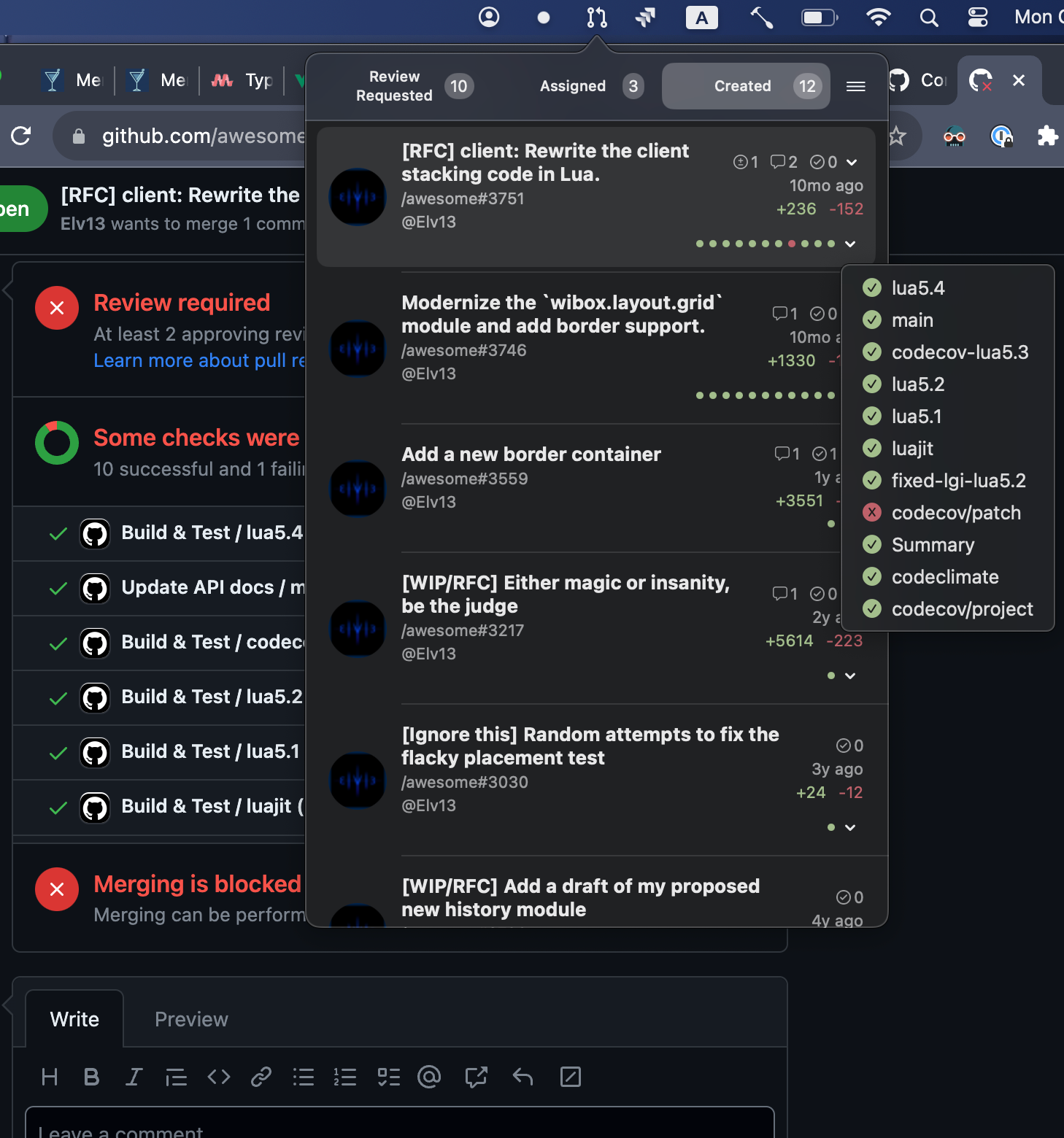
GitHub reports CI results as checks or as commit statuses. PullBar Pro shows both, with links to the corresponding builds.
Reviews
For each pull request, see the number of approvals, comments and change requests, with the reviewer’s name and a direct link to the review.
Features
- Pull request details: title, repository, number, author, labels, reviews, additions/deletions, CI status
- Up to five reorderable tabs with editable searches: Review Requested, Assigned, Created, Mentioned, Reviewed
- Per-tab sorting and filters
- Sign in with GitHub, or use a personal access token
- GitHub.com, GitHub Enterprise Cloud and GitHub Enterprise Server
- Keyboard shortcuts for opening the app and switching tabs
FAQ
Which permissions does PullBar Pro need?
The repo scope. It is the only GitHub scope that gives access to private repositories, and it also includes write access. PullBar Pro only reads pull request data.
Why don’t pull requests from my organization show up?
Some organizations restrict third-party apps. An organization owner has to approve PullBar Pro, or you can sign in with a personal access token instead.
Does it work with GitHub Enterprise?
GitHub Enterprise Cloud works with Sign in with GitHub. For GitHub Enterprise Server, use a personal access token and enter your server’s API address.
Where is my token stored?
In the macOS Keychain. PullBar Pro doesn’t collect any data. See the privacy policy.




 Download on the
Mac App Store
Download on the
Mac App Store
 Download on the
GitHub Releases
Download on the
GitHub Releases
 tap: menubar-apps/menubar-apps
streakbar
tap: menubar-apps/menubar-apps
streakbar
Download on the
Mac App Store
Download on the
App Store

 ### App Store Connect stats in your menubar!
SwiftyStats is a lightweight menubar macOS application designed for indie app developers. It provides easy access to your recent installation data from App Store Connect, all from the convenience of your Mac’s menubar.
### Getting Started:
Link your Apple App Store account and authorize access via your Admin account on App Store Connect.
Generate an API key with Admin privileges on the Integrations page to ensure seamless communication between SwiftyStats and your account.
All credentials are securely stored in your Mac’s Keychain. SwiftyStats does not share any data with third parties; it only interacts directly with the App Store Connect API.
### Important Note:
SwiftyStats utilizes the Sales Report API for its data, so there may be slight discrepancies compared to the Analytics and Trends pages on App Store Connect due to report availability.
Requirements:
- Membership in the Apple Developer Program
- At least one app distributed on the App Store
- An App Store Connect account with permissions to create API keys
### App Store Connect stats in your menubar!
SwiftyStats is a lightweight menubar macOS application designed for indie app developers. It provides easy access to your recent installation data from App Store Connect, all from the convenience of your Mac’s menubar.
### Getting Started:
Link your Apple App Store account and authorize access via your Admin account on App Store Connect.
Generate an API key with Admin privileges on the Integrations page to ensure seamless communication between SwiftyStats and your account.
All credentials are securely stored in your Mac’s Keychain. SwiftyStats does not share any data with third parties; it only interacts directly with the App Store Connect API.
### Important Note:
SwiftyStats utilizes the Sales Report API for its data, so there may be slight discrepancies compared to the Analytics and Trends pages on App Store Connect due to report availability.
Requirements:
- Membership in the Apple Developer Program
- At least one app distributed on the App Store
- An App Store Connect account with permissions to create API keys




Download on the
Mac App Store
Download on the
GitHub Releases
tap: menubar-apps/menubar-apps
todobar